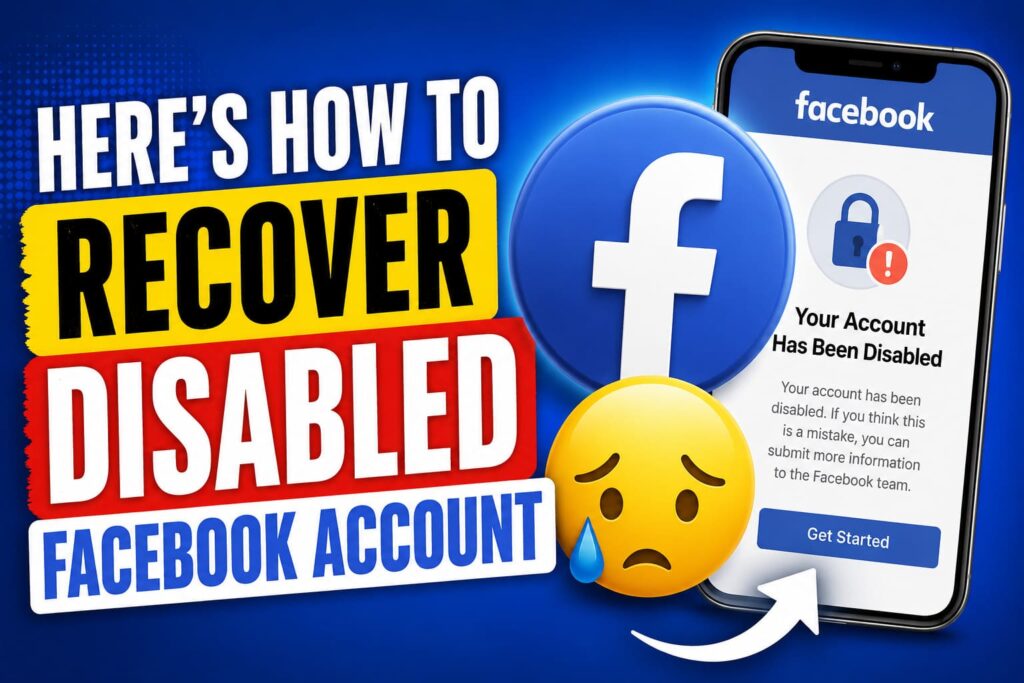
Let me paint you a picture: recovering a disabled Facebook account isn’t just difficult — it’s a full-blown nightmare. The kind where you’re screaming for help and nobody hears you. Endless forms, automated replies, dead ends… I went through all of it myself. That’s exactly why I wrote “How To Recover a Disabled Facebook Account” so you don’t have to waste hours dealing with the same frustration, confusion, and helplessness I faced.
It was a regular Tuesday morning. I was drinking my coffee, scrolling through Facebook like I’ve done thousands of times before. Then suddenly – poof – I was logged out.
I tried to log back in.
“Your account has been disabled.”
No warning. No email explaining why. No human being to talk to. Just a cold, robotic message that made my stomach drop.
I felt sick.
Fifteen years of memories. Photos of my late grandmother. Conversations with friends who have since passed away. My small business page with 20,000 followers. All of it – gone in a single click of an algorithm that doesn’t know me from a spam bot.
If you’re reading this, you probably know that exact feeling. And I’m so sorry you’re going through it. but good news is you can Recover Disabled Facebook Account
Here’s the truth nobody wants to tell you: Recovering a disabled Facebook account is one of the most frustrating, soul-crushing experiences you can have online. And it’s not your fault. It’s Meta’s.
But after 47 days of crying, yelling at my screen, and trying every trick on the internet – I got my account back. And I’m going to tell you exactly how.
But first, let me be brutally honest with you.
The Hard Truth That Meta Won’t Admit
Meta does not care about you.
I know that sounds harsh. But hear me out.
Facebook has over 3 billion users. They don’t have a customer support phone number. They don’t have a live chat. They don’t even have an email address you can write to.
What they have is artificial intelligence robots that scan billions of posts, comments, and messages every single day. These AI systems make mistakes constantly. They flag innocent people for “spam,” “impersonation,” or “community standards violations” all the time.
And when the AI disables you?
You get a little blue button that says “Request Review.”
You click it. You hold your breath. You wait.
And then… nothing. Or worse an automated email that says “Your Facebook account has been permanently disabled, You requested a review of this decision, but we still found that your account, or activity on it, didn’t follow our Community Standards. You can’t request another review.“
Did a human review it? Almost certainly not. The AI reviewed itself. It’s like asking the fox to guard the henhouse.
So what do you do when the system is broken?
You stop trying to go through the front door. Because the front door is locked, guarded by a robot, and there’s no key.
You go through the back door.
And the only back door into Meta’s human support system is Instagram.
Why Instagram Is Your Only Real Hope
Here’s something most people don’t realize: Facebook and Instagram are the same company now. They share data, they share systems, and crucially they share support teams.
But there’s a catch.
You cannot just email Meta support. You can’t call them. The only way to get a real, breathing human being to look at your case is to become a paying Meta Verified customer.
Meta Verified is their subscription service the one with the blue checkmark. It costs about $12 to $15 a month depending on where you live.
And here’s the secret that saved my sanity: You don’t need to verify your Facebook account To Recover Disabled Facebook Account, You can verify your Instagram account instead.
Once you have that little blue check on Instagram, you unlock something magical: Meta Pro Team support. Real people. With names. Who can actually open your Facebook account from their end.
This is not a hack. This is not against the rules. This is literally the only customer service pathway Meta offers. They just don’t advertise it because they’d rather you suffer quietly.
So let me walk you through exactly what I did step by painful step so you don’t have to spend 47 days crying like I did.
Step 1: Take a Deep Breath (Seriously)
Before you do anything else, I need you to breathe.
I know you’re panicking. I know you’re angry. I know you feel like someone ripped out a piece of your digital life. But if you rush this process, you will make mistakes that cost you your account forever.
Here’s what you need to gather before you start:
- Your government ID (driver’s license, passport, or national ID card)
- A clear photo of yourself (selfie) that matches your ID
- The email address linked to your disabled Facebook account
- Any screenshots you have of the error message (every code matters)
- A cup of tea or coffee – this will take patience
Got it? Okay. Let’s go.
Step 2: Get Meta Verified on Instagram (Even If You Never Use Instagram)
This is the most annoying part of the process, especially if like me you barely use Instagram. But trust me, it works.
Here’s exactly what to do:
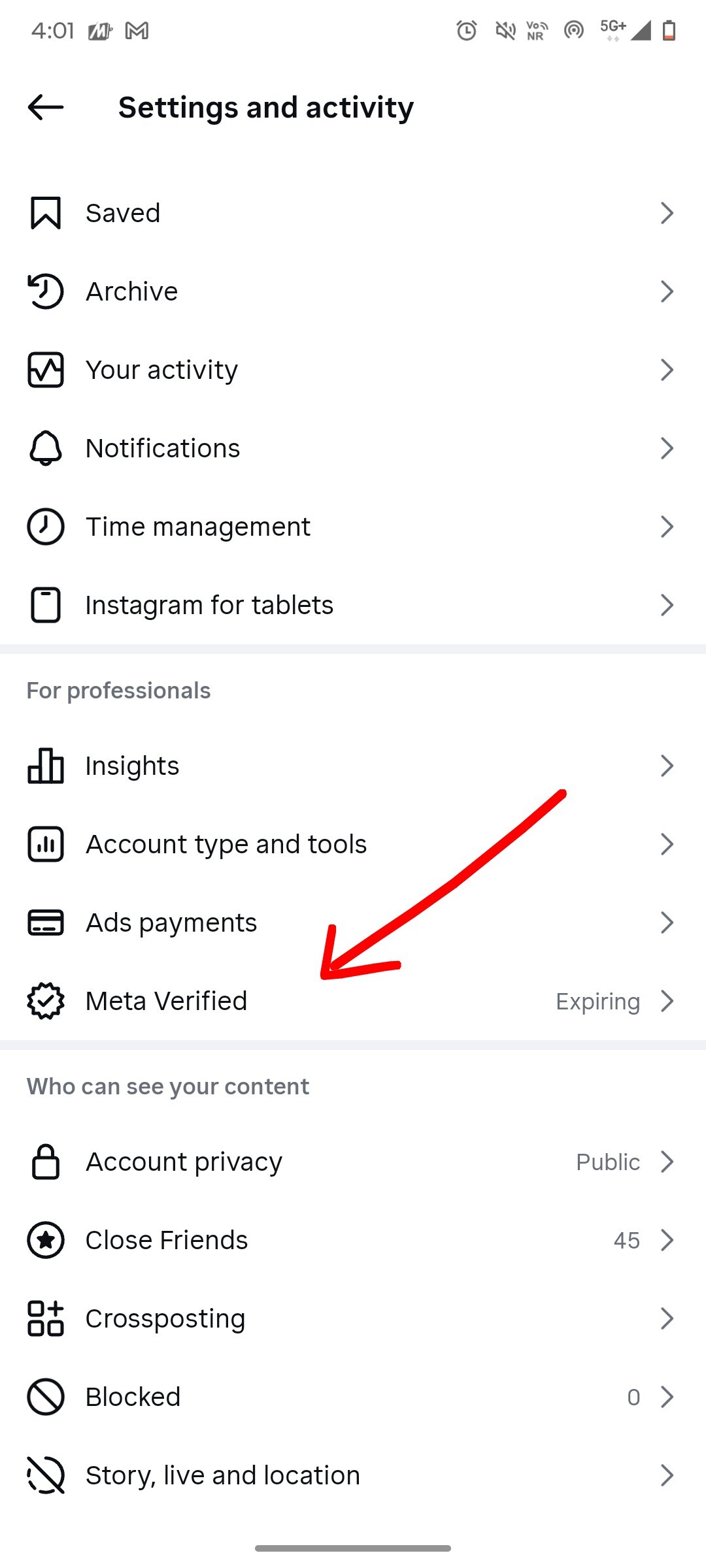
- Open Instagram on your phone (you need the app, the website won’t work for verification).
- Go to Settings (the three lines in the top right corner).
- Tap Accounts Center (this is where Meta lumps all their apps together).
- Tap Meta Verified.
- Follow the prompts to apply.
Requirements for Meta Verified:
- Your Instagram account must be at least 30 days old. (If you don’t have an old account, wait for 30 days.)
- You must have a profile photo of your face.
- Your account must have two-factor authentication turned on.
- Your name on Instagram must match your ID exactly.
Pro tip: If your Facebook account had a nickname or a middle name that isn’t on your ID, change your Instagram name to match your ID before applying. The AI checks this.
The verification process usually takes 24 to 72 hours. You’ll be asked to:
- Submit a photo of your ID
- Take a selfie (they check it’s really you)
- Pay the subscription fee
Yes, you have to pay. It hurts. I get it. But think of it as a $15 rescue fee for your decade of memories. That’s how I justified it.
Step 3: Submit Your ID And Do It Right
This sounds simple, but I messed this up the first time and wasted three days. Learn from my mistake.
When you take a photo of your ID:
- Use natural lighting (stand by a window)
- Make sure no fingers are covering any part of the ID
- Check that every letter and number is readable
- Don’t use a flash – it creates glare
- Take the photo from directly above, not at an angle
The name on your ID must match exactly. If your Facebook account was “Bethany Smith-Jones” but your driver’s license says “Bethany S. Jones” – make sure your instagram name should be what is found on license or other document by from you want to verified your instagram.
For the selfie:
- Look straight at the camera
- Don’t wear sunglasses or a mask
- Make sure the lighting is even
- Turn your head slightly when asked
I know this feels invasive. I know it feels weird to give Meta your ID. But this is the toll you pay to get a human’s attention. If you want your account back, you play their game.
Step 4: Find the Hidden Support Door (It’s Not Where You Think)
Once you have the blue checkmark on Instagram, you now have access to support.
Do not go to Facebook’s help center. That’s the robot hellscape you’re trying to escape.
Instead:
- Open Instagram on your phone.
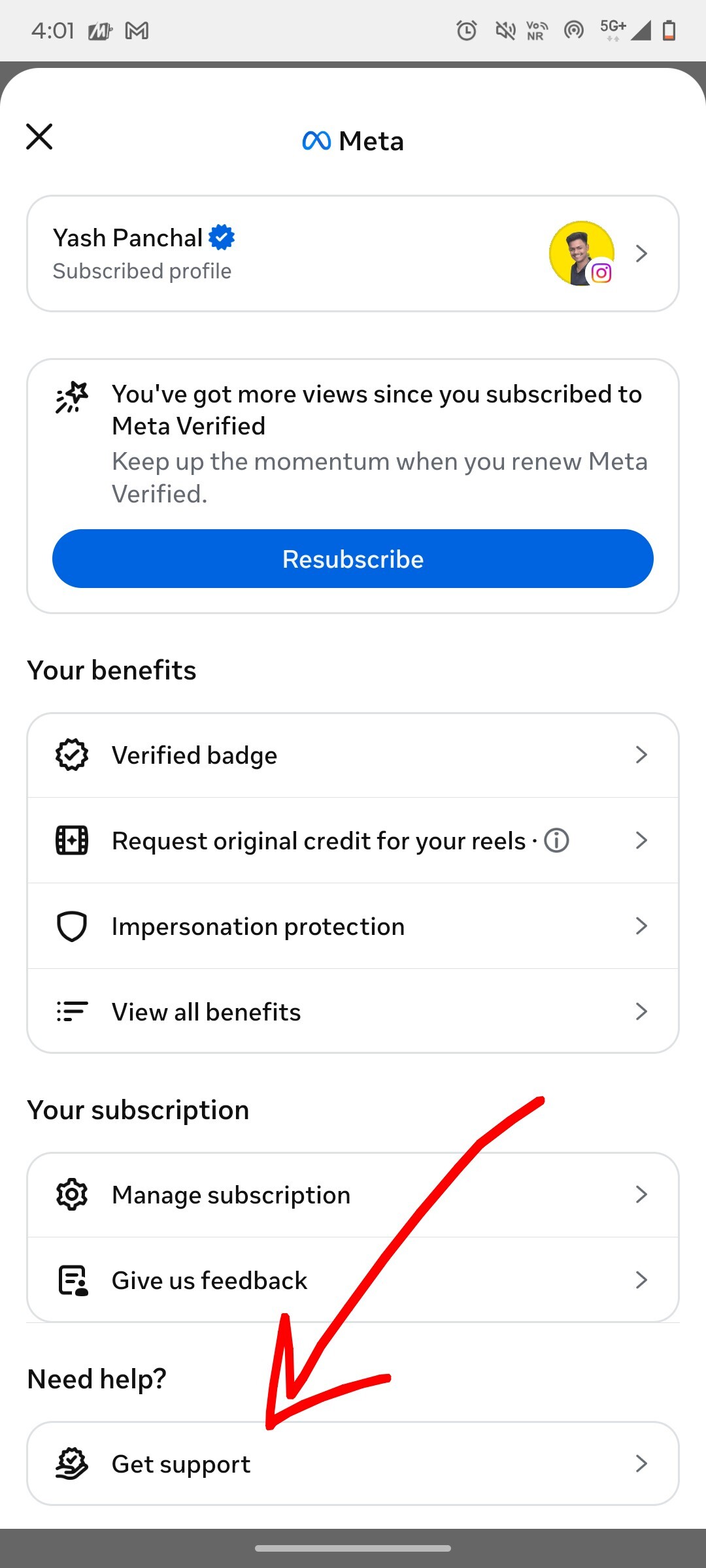
- Go to Settings > Meta Verified > Get Support.
- You’ll see a list of FAQ articles. Ignore them.
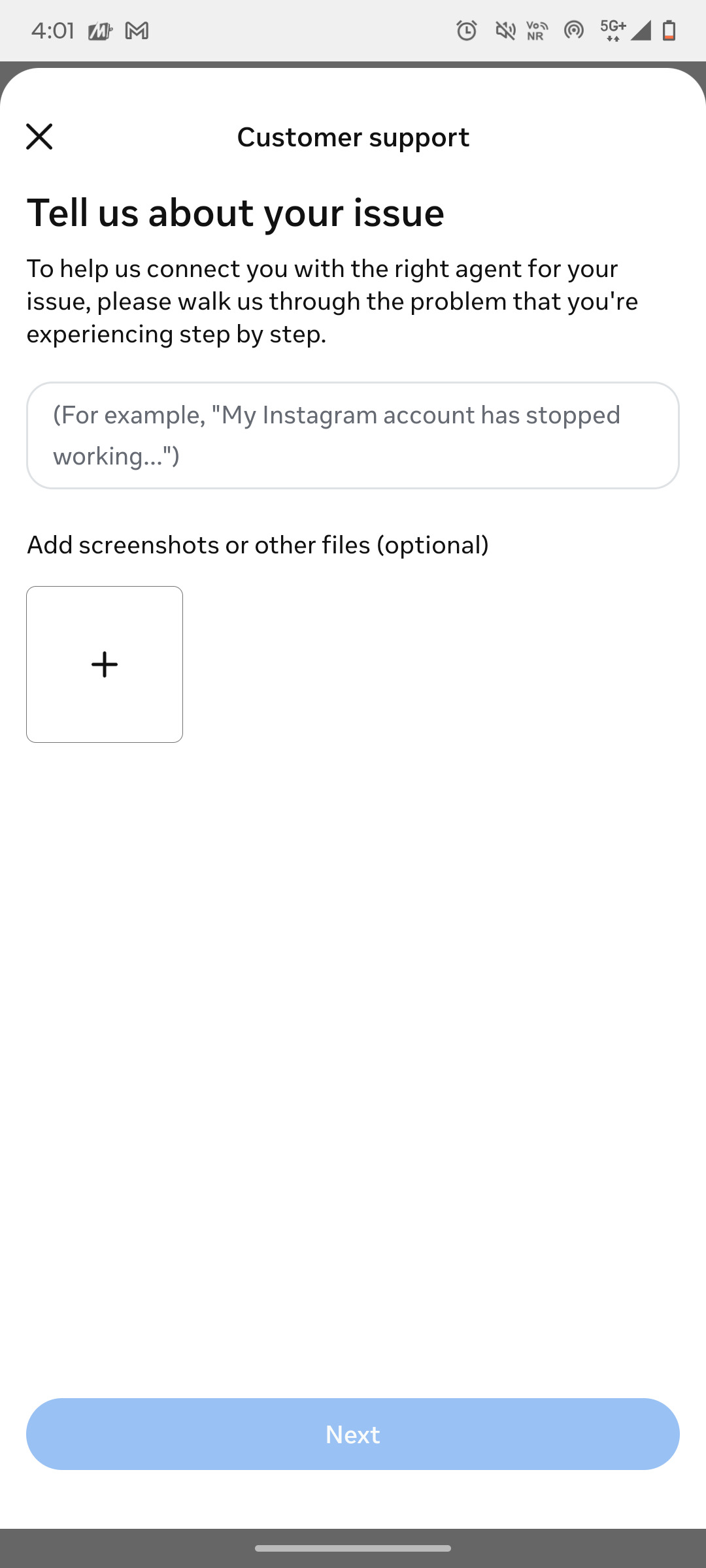
- Scroll all the way to the bottom. Look for a button that says “Contact Support” or “Still need help?”
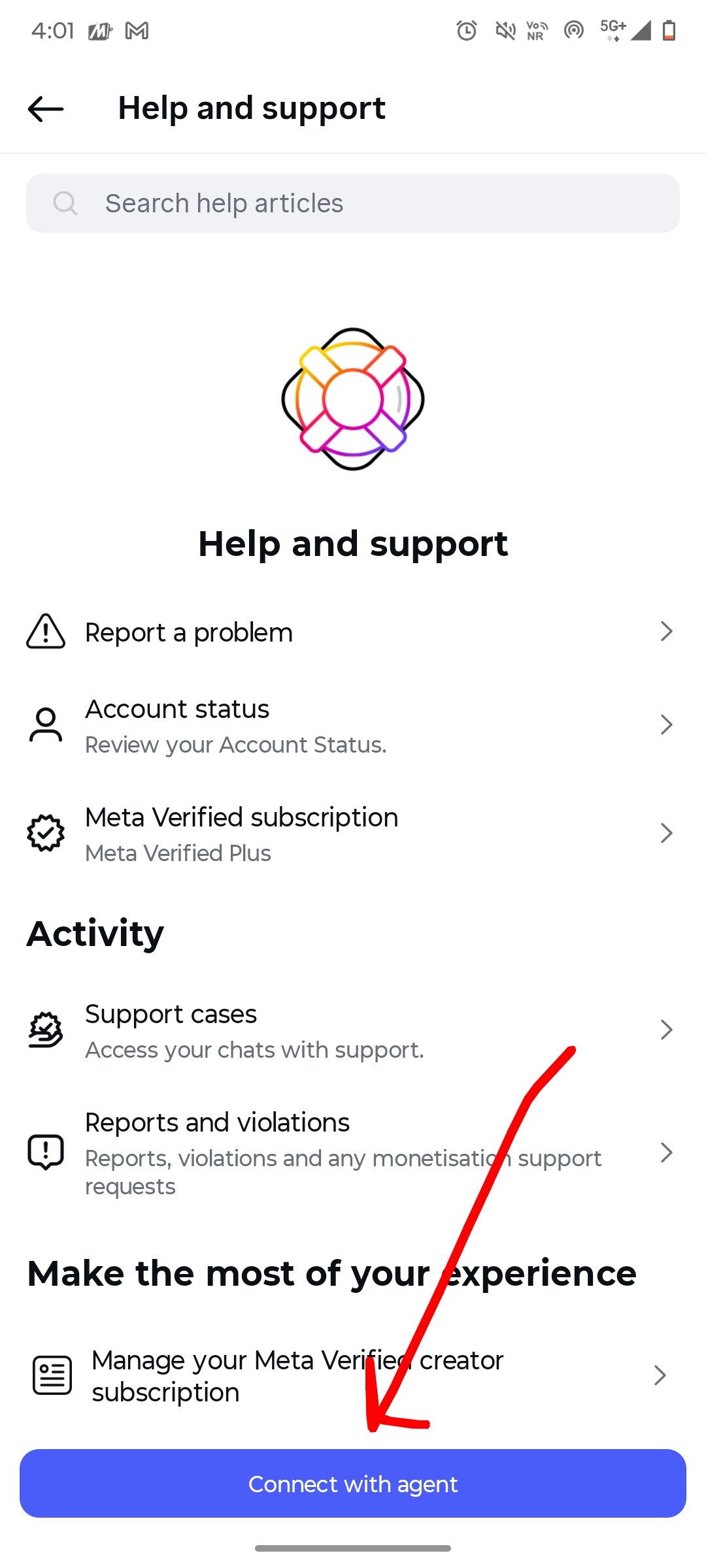
Sometimes this button hides. If you don’t see it, try:
- Tapping on a random FAQ article, then scrolling to the bottom of that page
- Switching between Wi-Fi and cellular data (I’m not kidding, the app glitches)
- Updating the Instagram app
Once you find it, you’ll be asked to choose a topic. Select:
- “Something else”
- Then “Facebook Account Issue”
- Then “My account was disabled”
Now comes the most important part. Do not rush this next step. This is where most people fail.
Step 5: Write a Support Ticket That Actually Works
The support agent reading your ticket is a human being probably overworked, underpaid, and reading hundreds of tickets a day. They will skim your message in about 15 seconds.
If you write a novel full of rage and exclamation points? They’ll close your ticket.
If you write two sentences with no details? They’ll close your ticket.
You need to write something that is polite, factual, and urgent – but not desperate.
Here is the exact template I used. I’ve left notes in [brackets] where you need to fill in your own information.
Subject: Wrongfully Disabled Facebook Account – Request for Human Review – [Your Full Name]
Message:
Hello Meta Support Team,
First, thank you for taking the time to read this. I know you probably see hundreds of these a day, so I’ll keep it as clear and short as I can.
My Facebook account ([link to your Facebook profile if you remember it]) was disabled on [exact date, check your email for the disable notice].
I believe this suspension was a mistake made by an automated system. I have never violated Facebook’s Community Standards. I do not post spam, hate speech, violence, or anything inappropriate. I believe I was flagged incorrectly for [choose one: suspicious activity / bot behavior / impersonation / a photo that looked like spam but wasn’t].
What I’m asking for:
I am not asking for special treatment. I am asking for a human agent to manually review my account activity. If you look at my login history, post history, and friend network, I believe you will see clear evidence that I am a real person who has followed the rules for years.
Please escalate this ticket to a human reviewer. I am happy to provide any additional proof you need – my ID again, a handwritten note, a video call, anything.
Thank you for your time and for any help you can offer. I truly appreciate it.
Thanks
[Your Full Name]
[Your Email – different from your disabled Facebook email if possible]
[Your Phone Number – optional but helpful]
Do not copy this word-for-word without personalizing it. The agent can tell if you’re using a template. Change a few sentences. Add a small personal detail. Make it sound like you.
Step 6: Wait But Don’t Wait Forever
After you submit the ticket, you’ll get an automated email saying “We’ve received your request.”
Then you wait.
And wait.
And wait some more.
Here’s my realistic timeline from when I finally did this correctly:
- Day 1: Submitted the ticket. Got auto-reply.
- Day 4: A human replied asking for my Facebook email address.
- Day 9: They said they were “escalating to a specialized team.”
- Day 12: Nothing. I replied politely asking for an update.
- Day 14: They asked for a different email address to send a recovery link to.
- Day 16: Recovery link arrived. I clicked it. Account restored.
Total time after the correct ticket: 16 days.
Now, I’ve seen some people get their account back in 3 days. I’ve seen others wait 6 weeks. It depends on how busy they are and how complex your case is.
What not to do:
- Do not send multiple tickets. It puts you at the back of the queue.
- Do not reply angrily. Be frustratingly polite.
- Do not demand to speak to a manager on day two. It doesn’t work.
What to do:
- Check your email every day (including spam folder).
- Reply within 24 hours if they ask you something.
- If you haven’t heard back in 5-7 days, send one polite follow-up: “Hi, just checking if there’s any update on ticket #XXXXX. Thank you for your help.”
Important Warning: Scammers Are Everywhere
While I was waiting for my account to be restored, I went looking for help online. And oh my god – the predators came out of the woodwork.
Within hours of posting in a Facebook recovery group, I got:
- 12 direct messages from scammers offering to restore my account for $200
- 3 emails pretending to be from Meta support
- 2 phone calls from “technical support” asking for my password
None of them were real.
Here’s the rule: No one can recover your account for a fee except Meta themselves. Anyone who says they can hack Facebook is lying to steal your money or your identity.
The only legitimate path is the one I just walked you through Meta Verified on Instagram. That’s it. That’s the whole list.
Don’t make a bad situation worse by getting scammed. I almost did, and I still feel sad about it.
What If This Doesn’t Work For You?
I want to be honest with you. This method works for wrongful suspensions – when the AI made a mistake. It does not work for:
- Accounts disabled for severe violations (child exploitation, terrorism, hate groups)
- Accounts that were legitimately spamming or scamming
- Accounts where the ID doesn’t match the name
If you fall into those categories, I’m sorry but your account is likely gone forever. It’s time to start fresh.
But if you’re an ordinary person a mom, a small business owner, an artist, a grandparent, Roofer who got caught in a broken algorithm? This method is your best shot.
Final Thoughts: Why I Wrote This Post
When my account was disabled, I felt completely alone. I s earched Google for hours. I found nothing but old articles and forum threads full of desperate people like me, all hitting the same brick wall.
I promised myself that if I ever got my account back, I would write the guide I wish I had on day one.
So here it is.
I can’t promise you’ll get your account back. Meta’s system is deeply broken, and sometimes even the right method fails. But I can promise you that this method gave me my 15 years of memories back – and I hope it does the same for you.
One last thing: Back up your data. Once you get your account back, go to Settings > Your Facebook Information > Download Your Information. Save everything to a hard drive. Never let a robot hold your memories hostage again.
You’ve got this. Be patient. Be polite. And don’t give up.
If you have questions, drop them in the comments below. I try to answer as many as I can.
Take care of yourself this stuff is stressful, and your mental health matters more than any social media account.