
You packed the boxes, changed your home, and somehow survived setting up the new Wi-Fi. But there’s one tiny thing you probably forgot: your phone still thinks you live at your old apartment.
So now, every time you ask Google Maps to take you home, it cheerfully tries to send you across town to a place you don’t even live anymore. Cute, but not helpful.
Annoying, right?
Or maybe you never even added your home address in the first place. So every single time morning, night, rain or shine you’re manually typing your full address like it’s 2005. Street name, city, zip code, the whole thing. Over and over again. Honestly, who has the time?
Nobody wants to type out their full address every single time they need directions home. That’s why saving your home address in Google Maps is such a game changer.
The good news? Fixing this takes less than three minutes. Seriously. You’ll spend more time reading this sentence than actually doing it.
Once it’s saved, getting home is just one tap away. And while you’re at it, you can save your work address, the gym, or that coffee shop you hit every morning. It makes everything faster and simpler.
So here’s how to add your home address for the first time and how to change it if you’ve just moved.
Let me walk you through exactly how to add your home address on Google Maps whether you’re team iPhone or rocking an Android.
How to add your home address to Google Maps 2026:
STEP 1. Open Google Maps
STEP 2. Select “You.”
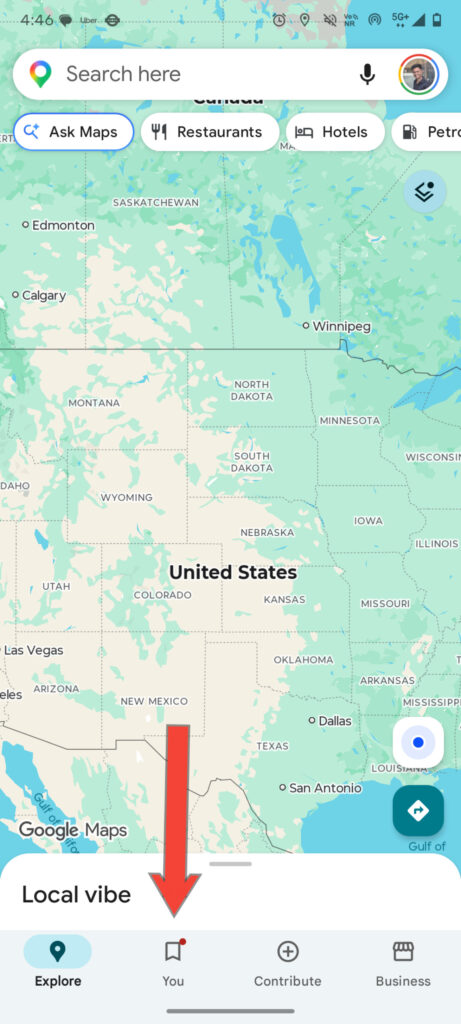
STEP 3. Tap “Set Home.”
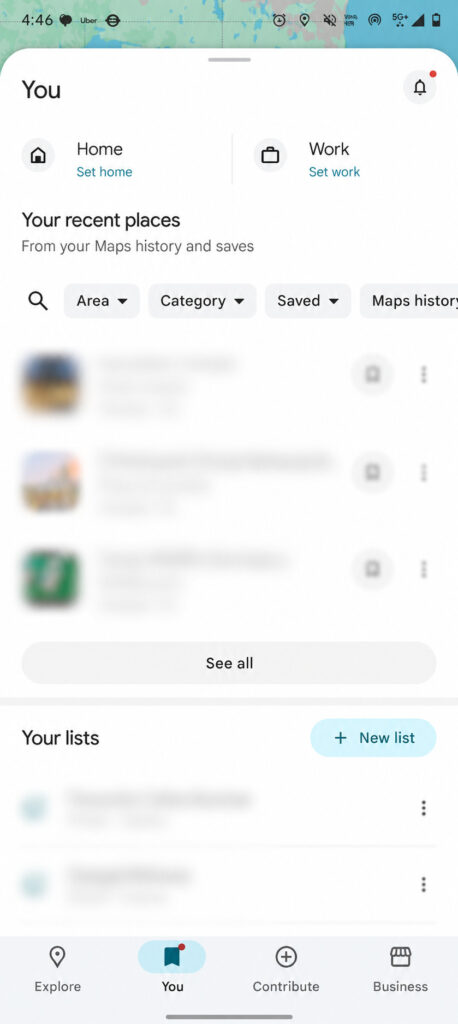
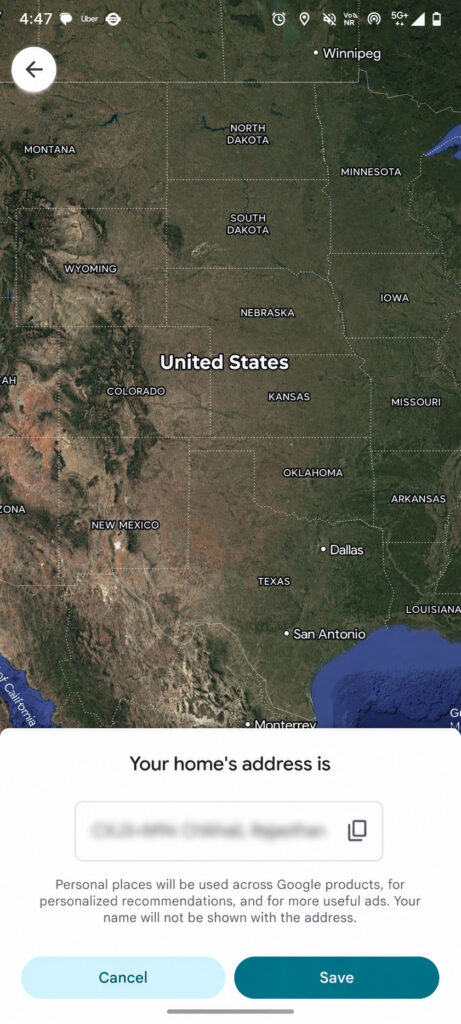
STEP 4. Enter Your Home Address
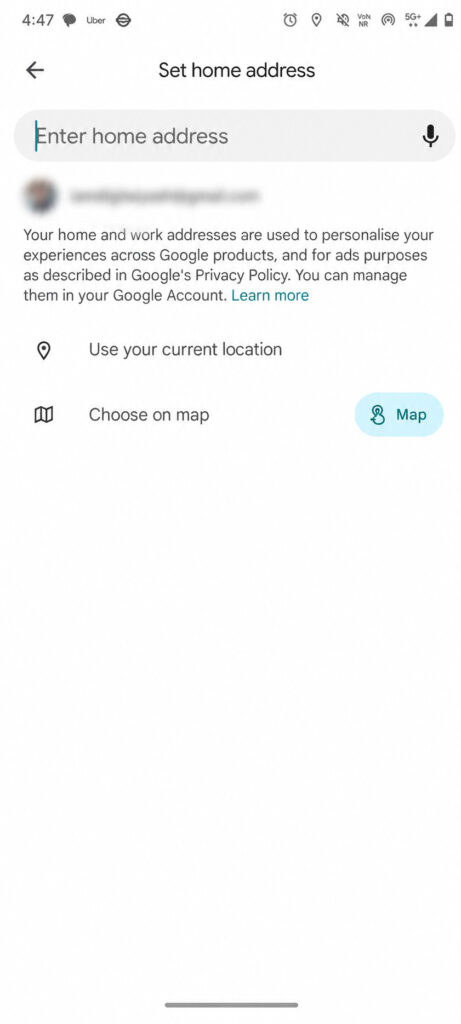
STEP 5. Save The Address
How to change your home address on Google Maps (if you’re updating an old one)
If you’ve recently moved to a new home and your phone still has your old address saved, don’t worry. Updating it is quick and easy. Just follow the steps below to replace your previous address with your new one so Google Maps knows exactly where to take you.
STEP 1. Open Google Maps
STEP 2. Select “You.”
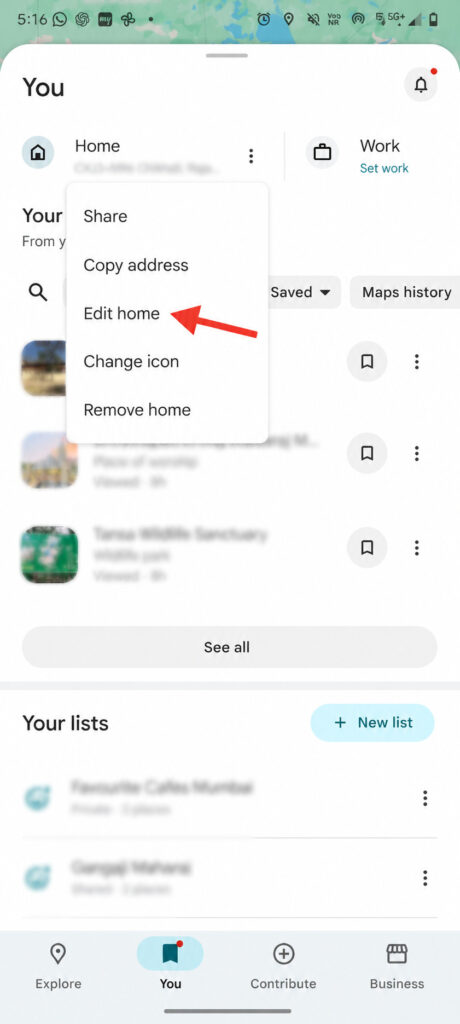
Step 3. Click Three Dots Near Home Address
Step 4. Click Edit Home
STEP 5. Enter Your New Home Address
That’s all there is to it. Now every time you ask Google Maps to take you home, it’ll actually take you home not on a little detour to your old neighborhood.
And hey, thanks for reading all the way through. Seriously, it means the world to us and keeps us motivated to write more stuff that actually helps.